How To Gameshare On PlayStation Step By Step Guide
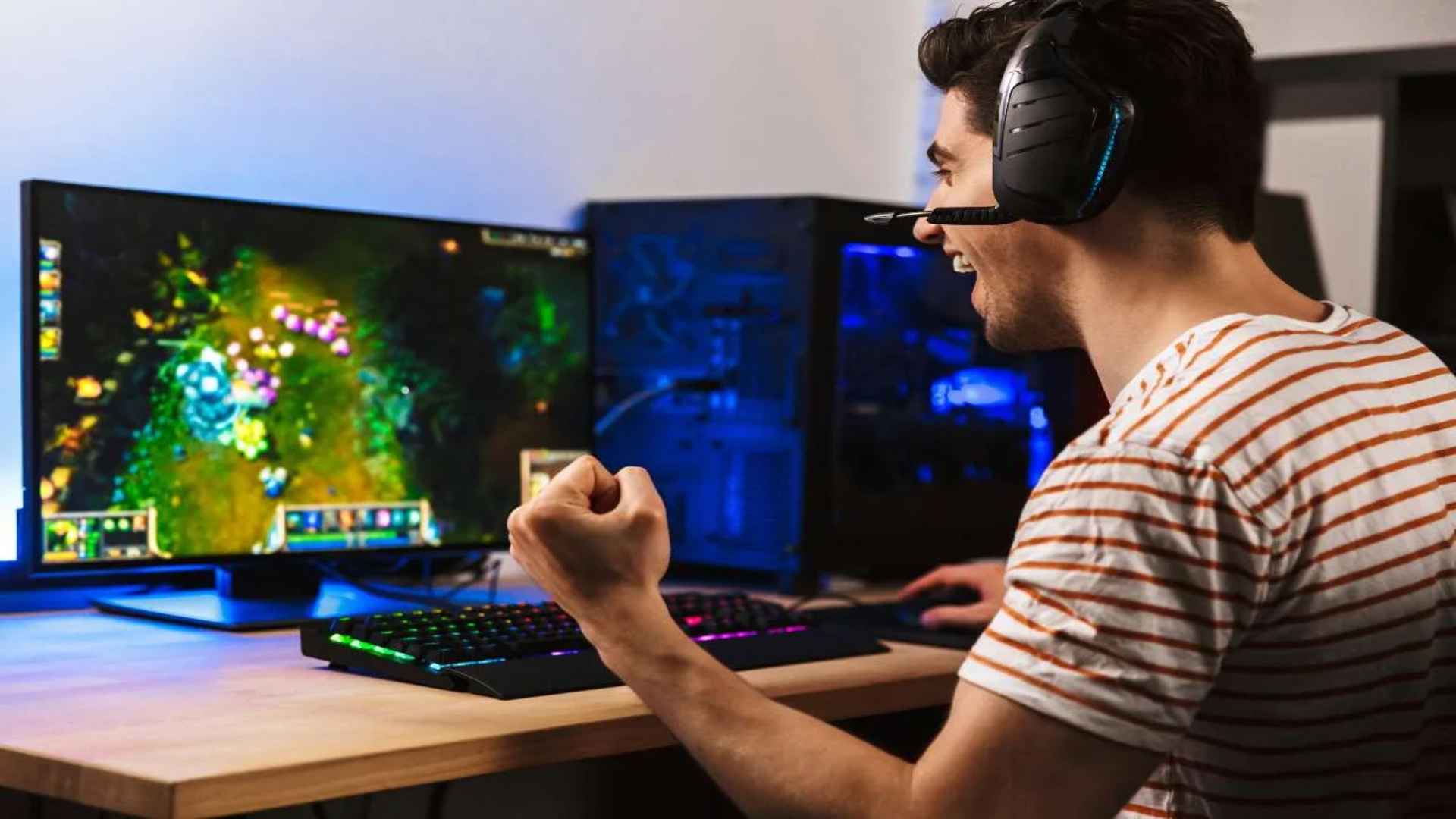
Sharing your digital library with a trusted friend or family member is an excellent way to enjoy multiplayer experiences without buying multiple copies. The built-in features on modern PlayStation consoles officially support this capability, making gaming more accessible for households. This comprehensive guide walks you through the entire setup process to ensure a seamless connection between systems.
Preparing Your Account and Setup
Before beginning the linking process, both players must establish a strong baseline of security and mutual configuration. You will need to temporarily share login credentials, meaning this procedure should only be performed with a highly trusted individual. Enabling two-factor authentication before you start will safeguard your personal data from unauthorized access.
Additionally, it is recommended to clear any saved credit cards or active billing methods from your account management panel for extra peace of mind. A stable internet connection on both consoles is mandatory to authenticate the digital software licenses successfully. Taking these initial steps avoids unexpected errors when launching the shared software catalog later.
Configuring Console Sharing on PlayStation 5
To begin sharing on a modern console, you must log into your active account on your friend or family member's hardware. Navigate immediately to the settings menu located at the top right corner of the main dashboard screen. From there, select the user profiles section and choose the option to add a new account to the device.
Once signed in with your personal credentials, locate the other settings tab to find the console sharing and offline play option. Activating this parameter marks your friend's system as the primary hub for your digital purchases. This authorization permits any secondary user profile on that specific machine to access and launch your entire downloaded library.
Setting Up the Process on PlayStation 4
If you or your gaming partner are utilizing the previous generation system, the sharing logic functions via a primary registration system. Start by logging into the recipient's console using the account that owns the target digital games. Open the main settings menu and navigate directly to the account management dashboard.
Select the option to activate the current machine as your primary console and confirm the choice when prompted by the system. This action grants the local user the freedom to download and enjoy your purchased titles from their own personal account. The original account owner can still play their library normally on their own system by remaining connected online.
Downloading and Accessing Shared Titles
With the primary console designations properly configured, accessing the library becomes a matter of navigating the built-in game collection. The receiving player must log into the owner's profile temporarily to initiate the desired downloads from the library interface. Once the downloading progress begins, you can safely switch back to your personal profile.
The newly installed applications will remain fully playable on your standard account without requiring further administrative actions. Both participants can even enjoy the same cooperative multiplayer match simultaneously using a single digital license. If any lock icons appear on the software tiles, navigating back to settings to restore licenses will quickly fix the problem.